
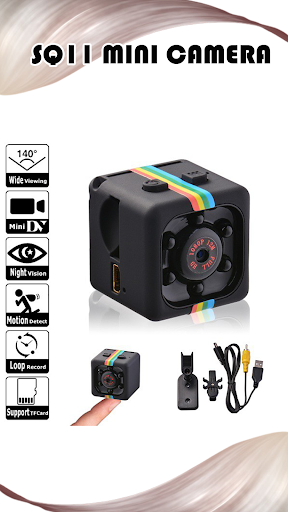
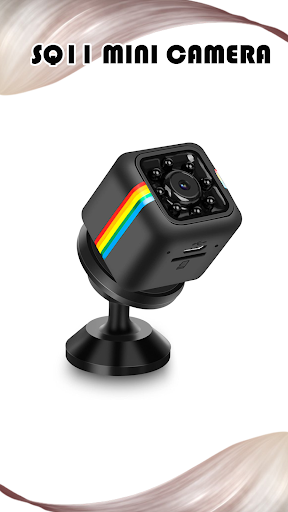
The SQ11 Mini Camera is a small, portable camera that is often used for surveillance and recording on-the-go.
It is known for its compact size and versatility, making it suitable for various applications.
Heres some information about setting up and using the SQ11 Mini Camera, as well as answers to frequently asked questions:1.
How to Setup the SQ11 CameraCharge the camera: Before you start using the camera, its essential to charge it.
Plug the camera into a power source using the included USB cable.
The red indicator light will turn on while charging and will turn off when the battery is full.Insert a microSD card: The camera uses a microSD card for storage.
Make sure to insert a microSD card (not included) into the card slot.
It supports cards with a capacity of up to 32GB.Power on the camera: To turn on the camera, press and hold the "M" (mode) button until the blue indicator light turns on.
The camera is now in standby mode.Start recording: You can start recording by pressing the "M" button once while in standby mode.
The blue light will blink three times, indicating that recording has begun.To stop recording, press the "M" button again.2.
Charging SQ11 cameraTo charge the SQ11 camera, connect it to a power source using the provided USB cable.
The red indicator light will turn on during charging and will turn off when the battery is fully charged.
It typically takes about 2 hours to charge fully.3.
How to Use the Mini HD Camera:The SQ11 Mini Camera can be used for various purposes, such as capturing videos or taking photos.
It can also be used as a webcam.
To switch between modes, press and hold the "M" button for about 3 seconds.
The camera will cycle through modes: photo, video, and motion detection.4.
Video RecordingTo record video, make sure the camera is in video mode, then press the "M" button once to start recording.
Press it again to stop the recording.
Videos are saved on the microSD card.5.
SQ11 Mini DV Camera GalleryThe camera doesnt have a built-in display for reviewing captured media.
To view your recordings, youll need to connect the camera to a computer or use a microSD card reader to access the files on your computer.Disclaimer:SQ11 Mini Guide is an educational application that will help friends better understand the SQ11 Mini Guide, not an official application.
The information we provide comes from various trusted sources.
https://andro.io/app/sq11minicameraguide
 Power 100


Android app profile
Sq11 Mini Camera App Guide for Android – Latest Version & Features
by Jonkopings
★★★★★
(0 ratings)
Rate this app
How do you feel about Sq11 Mini Camera App Guide?
Thanks for your feedback!
> 2.2k
Monthly Downloads
~$900
Estimated Cost
Screenshots