The new features including the AR and beauty functions will blow you away!
Thanks.Supported Models :Kodak 2 inch Printer (P210)Kodak 2 in 1, 2 inch Camera (C210)Kodak 3 inch Square Printer (P300)Kodak 3 inch Square 2 in 1 Camera ( C300)Kodak 4 inch Dock Printer (PD460)[How to Use]1.
Make sure you recharge the printer before you use it.2.
Make sure the Adapter is connected properly.3.
Turn on the printer4.
Go to Bluetooth setting and find the printer’s MAC address.The MAC address is placed inside the printer’s doorIf you purchased Dock Printer, dock your smartphone at the pin on top the of the printer or find the MAC address on the downside of the printer to connect the device to the Bluetooth.5.
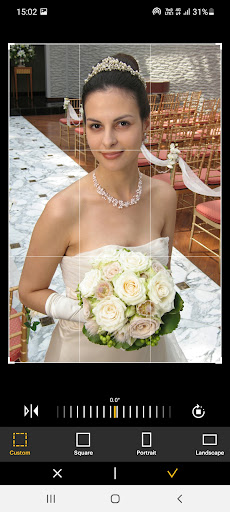
Select an image from the Gallery or take a photo with your smartphone.6.
Once image has been selected, edit the image with your personal preference.7.
Now press print button located on top of the printer when editing is completed.8.
When you print for the first time, it may need to update the firmware.
Please follow the instruction shown on the screen of your smartphone.9.
It will take about a minute to fully print.
Please do not pull the photo until it is completely printed.
https://andro.io/app/photoprinter
 Power 100



Android app profile
KODAK Photo Printer for Android – Latest Version & Features
★★★★★
(0 ratings)
Rate this app
How do you feel about KODAK Photo Printer?
Thanks for your feedback!
> 2.2k
Monthly Downloads
~$900
Estimated Cost
Screenshots