
Countdown Calendar is a very convenient application that you can see how many days left until your saved to-do list!When you save the time of delivery of the project 1 for example, you can see the remaining days till the due date on the calendar at one view.Not only you can save projects due date but also travel, presentation, business trip or commemoration day and so on.
You can select the color of post-it for each to-do list and switch the calendar by color.Check the checkbox when you have done the to-do list so that you can confirm by the calendar whether it is done or not.The initial window is calendar.~Calendar and Calendars buttons (from the left) ~1.
「to-do list Add」button: Select the date → Tap this button to move to the to-do list Add Window.2.
「Today」button: Go back to the todays date.3.
「Left」& 「Right」button: Move the date right and left.4.
「List」button: You can see the list of saved to-do list.5.
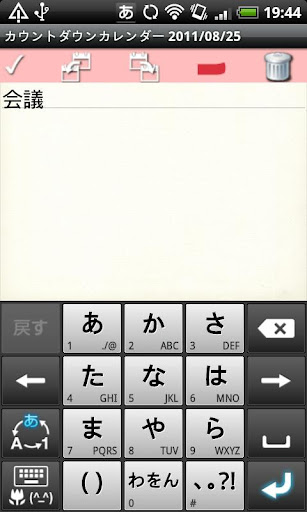
「Post-it」buttons of the upper part of the calendar: When you tap each color, you can switch the calendar by color.~to-do list Add Windows buttons (from the left)~1.
「Checkmark」: Tap this checkmark when you have done the to-do list.2.
「Move the to-do list to previous day」: Use this button when you want to move the to-do list to previous day.3.
「Move the to-do list to next day」: Use this button when you want to move the to-do list to next day.4.
「Post-it」: You can select a color for your to-do list.
Select white when you dont need to add post-it.5.
「Delete」: You can delete the to-do list.~How to save to-do list!~1.
Select a date that you want to save the to-do list.2.
Tap 「to-do list Add」button of the calendar.3.
Then move to the to-do list Add Window.4.
Enter your to-do list and select a color of post-it for the to-do list.5.
Press 「Back」button to go back to the calendar.6.
You can confirm the saved to-do list in the list of the calendar where there was a message 「There is no to-do list」.7.
When you save the to-do list, a 「Stopwatch」mark will be displayed on the date.8.
You can save 5 to-do list per day.
When you select the color of post-it, post-it mark will be displayed on the date.9.
When you want to check the done to-do list, tap a to-do list in the list.
10.
Then move to the to-do list Add Window.
Tap the checkmark.11.
Press 「Back」button of the mobile to go back to the calendar.12.
You can confirm the checkmark next to the done to-do list.13.
When you tap each color of「Post-it」button of the upper part of the calendar, you can switch the calendar by color.※Pay version:No ads display
https://andro.io/app/countcalenf
 Power 100



Android app profile
CountdownCalendar for Android – Latest Version & Features
by GalleryApp
★★★★★
(0 ratings)
Rate this app
How do you feel about CountdownCalendar?
Thanks for your feedback!
> 2.2k
Monthly Downloads
~$900
Estimated Cost
Screenshots