● Prepared by the person who manages (teacher, etc.) ●1.
1.
Register the user ID (half-width alphanumerical), password (half-width alphanumerical) name, and email address from "Create a new group creator account".2.
2.
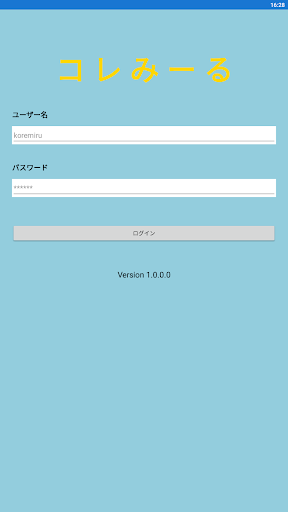
Log in with your registered ID and password[Creating a new group] Example: Prepare a graph for ◯ year ○ group1.
1.
From [Add Group] in the upper right menu, enter the group name (eg, 1st group in 2nd grade) and graph title.2.
2.
Register numerical units (eg cm, pieces, etc.) with "Add unit".
Register the units used on the x-axis and y-axis.
The date and time are the defaults, so registration is not required.3.
3.
Click the Add Member button from "Group Member Registration" (in the upper right menu), and set the user name (student name), user ID (half-width alphanumericals only), password (half-width alphanumericals only), and group name for each person.● How to use: Members (students) ●1.
1.
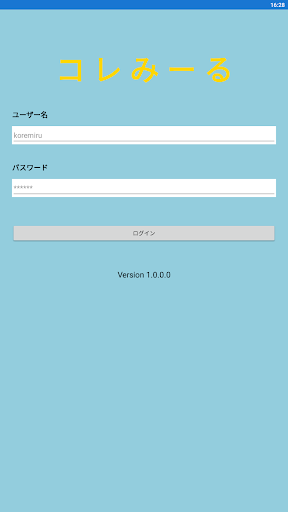
Log in with the ID and PW issued by the administrator (teacher)[Data entry]1.
Press the data entry screen2.
Enter the measurement date and time3.
Enter a number4.
Press the data registration button5.
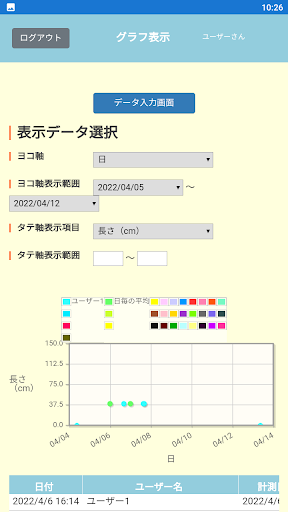
Press the graph display button to check the graph[graph display]1.
1.
Select the items to be displayed on the horizontal and vertical axes2.
2.
Adjust the graph by putting a numerical value in the display range of the graphOrigin of this collection: Collect and see (Miru)
https://andro.io/app/app-169ql
 Power 100

Android app profile
コレみーる for Android – Latest Version & Features
★★★★★
(0 ratings)
Rate this app
How do you feel about コレみーる?
Thanks for your feedback!
> 2.2k
Monthly Downloads
~$900
Estimated Cost
Screenshots